How to Redeem Power Your City Codes
Exact in-game path from Settings to Claim, plus mobile tips.
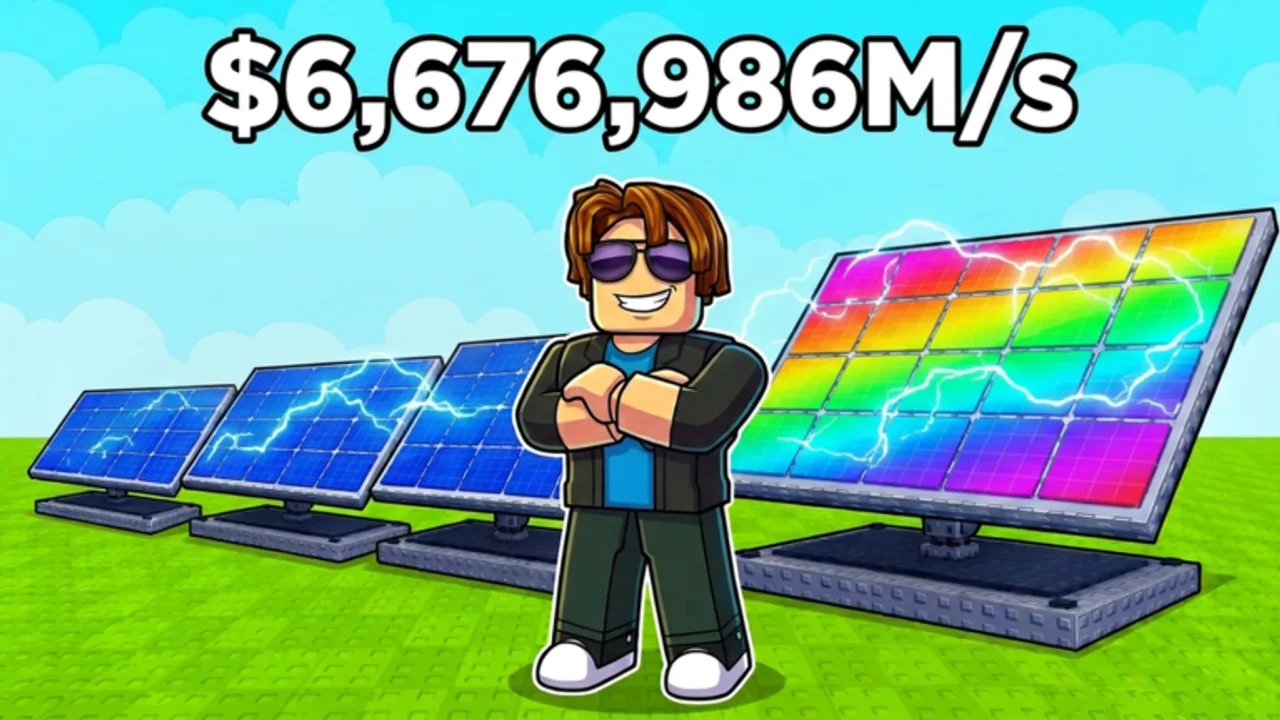
Redeeming Power Your City codes takes less than a minute once you know where Restore Power hid the input box. New players often search the entire HUD for a giant “Codes” button and miss the Settings panel on the left. This guide walks through the official path on Roblox, explains what success and failure messages mean, and shows how to prepare your grid so the boost is not wasted the second it starts.
Before you open Settings
Load into Power Your City and wait until your character and base UI are fully visible. If the experience is still streaming assets, the Settings button can lag or ignore taps. Confirm you are on the correct account — codes usually bind per Roblox user, so redeeming on an alt does not help your main.
Next, glance at your Generators and Batteries. If you are about to claim 2x Power, free some storage. If you are about to claim 2x Cash, stock Power you can sell immediately. Pair this page with the live list on the Codes Hub and the timing advice in Boost Tips.
Step-by-step redemption
- Launch Power Your City from Roblox on PC, phone, or tablet.
- Wait for your plot and HUD to finish loading.
- Tap or click the Settings icon on the left side of the screen.
- Scroll until you see the Redeem Codes section.
- Enter a working code exactly as listed — for example
1MVISITSor100KMEMBERS. - Press Claim and watch for a confirmation that the boost is active.
- Close Settings and immediately execute your sell or production plan.
That is the entire official flow. There is no separate website redeem, no inventory gift box, and no need to rejoin the server for most codes.
PC versus mobile differences
On PC, Settings is usually easy to hit with the mouse, and pasting from the Codes Hub is reliable. On mobile, fat-finger taps sometimes open neighboring buttons. Zoom your attention to the left stack, open Settings deliberately, and paste when possible instead of typing long milestone strings. If paste is blocked by the Roblox mobile keyboard, type carefully in uppercase as shown.
Landscape mode on tablets often makes the left Settings icon easier to reach than portrait. If your thumb cannot find it, rotate once before assuming the game removed codes.
What each result means
- Success / boost applied: the timer is running. Start selling or producing immediately.
- Invalid code: typo, expired string, or a code from a different Roblox game. Recheck spelling against our hub.
- Already redeemed: this account already claimed that code. Alts need their own redeem.
- No response: UI lag — close Settings, reopen, and try once more after the server settles.
Never chain ten random guesses. That habit trains you to ignore the live list and burns time better spent on Generators.
Full session example
Suppose 100KMEMBERS is live for 2x Cash. You enter the game, place one more Generator if you can afford it, confirm Batteries are holding a near-full load, then open Settings and Claim. The moment the boost appears, path into the city and sell. After the five minutes end, spend Cash on the bottleneck identified in Generators or Batteries. If instead you claimed 1MVISITS for 2x Power, stay near your plot, keep Generators running, and only sell once storage is healthy — or sell mid-boost if overflow is about to erase production.
Troubleshooting when Settings is missing
Rarely, a broken session hides HUD elements. Rejoin the experience, disable overlapping overlays from other apps, and verify you joined the Restore Power place rather than a copycat experience with a similar name. Power Your City should credit Restore Power on the Roblox page. Our Official Links hub points to the correct game URL and Discord if you need to confirm.
If codes redeem but no boost appears in gameplay, check whether you expected the wrong currency. Power boosts do not print Cash by themselves; Cash boosts do not accelerate Generator ticks. Understanding that split is half of successful redemption.
Related pages to open beside this guide
Keep Codes Hub open in another tab for copy-paste. After a successful claim, jump to Boost Tips so the timer is not spent standing still. New players should also skim Getting Started and Controls so movement and selling feel automatic before the next code drop.
Why we separate redeem steps from the code list
Search traffic often splits between “Power Your City codes” and “how to redeem Power Your City codes”. Putting both topics on one endless page buries the Settings instructions. This dedicated redeem guide stays stable even when the active code table changes weekly, while the hub focuses on which strings currently work. Cross-link both whenever you update either page.
Redeeming is easy. Redeeming well is a habit: prepare the grid, Claim with intent, then convert the boost using the cash and build guides elsewhere on this wiki. Do that consistently and every milestone code becomes a meaningful jump instead of a five-minute fireworks show.
Frequently Asked Questions
Quick answers to the most common questions.
Where is the redeem box in Power Your City?
Open the Settings icon on the left side of the HUD, scroll to Redeem Codes, enter the code, and press Claim.
Can I redeem codes on mobile?
Yes. Use the same Settings path. Paste when possible, or type the code in the exact capitalization shown on the Codes Hub.
Why did my code say invalid?
Usually a typo, an expired milestone code, or a code meant for another Roblox game. Compare against the live Codes Hub.
Do I need to rejoin after claiming?
Most boosts apply instantly. If nothing changes, rejoin once and confirm you claimed the intended Power or Cash multiplier.